Instructions
How everything in NOM Credits actually works — step by step, with real examples. You'll only see the sections that apply to you.
Getting Started
The basics — everyone on NOM Credits, no matter your role, should know these.
Add NOM Credits to your home screen
Turns the website into an app icon on your phone — opens full-screen, no browser bar, feels native.
🍏 iPhone (Safari)
- Open nomcredits.app in Safari (must be Safari, not Chrome)
- Tap the Share icon (square with an arrow) in the bottom toolbar
- Scroll down and tap "Add to Home Screen"
- Tap Add in the top-right corner
🤖 Android (Chrome)
- Open the site in Chrome
- Tap the ⋮ menu in the top-right corner
- Tap "Install app" or "Add to Home screen"
- Confirm by tapping Install
Once installed, it behaves like any other app on your phone — you don't need to reinstall it or keep a browser tab open.
Understanding your NOM Credits balance
Your Overview page shows your live balance and a quick summary of activity.
- Earning — you gain credits automatically for things like signing up as a Global Nomad Pass member, buying an event ticket, or scanning a reward QR code at a booth/workshop.
- Spending — you use credits to redeem side events at a festival or perks in the Marketplace (flights, eSIMs, accommodation discounts, and more).
- Your balance updates instantly — no need to refresh or wait.
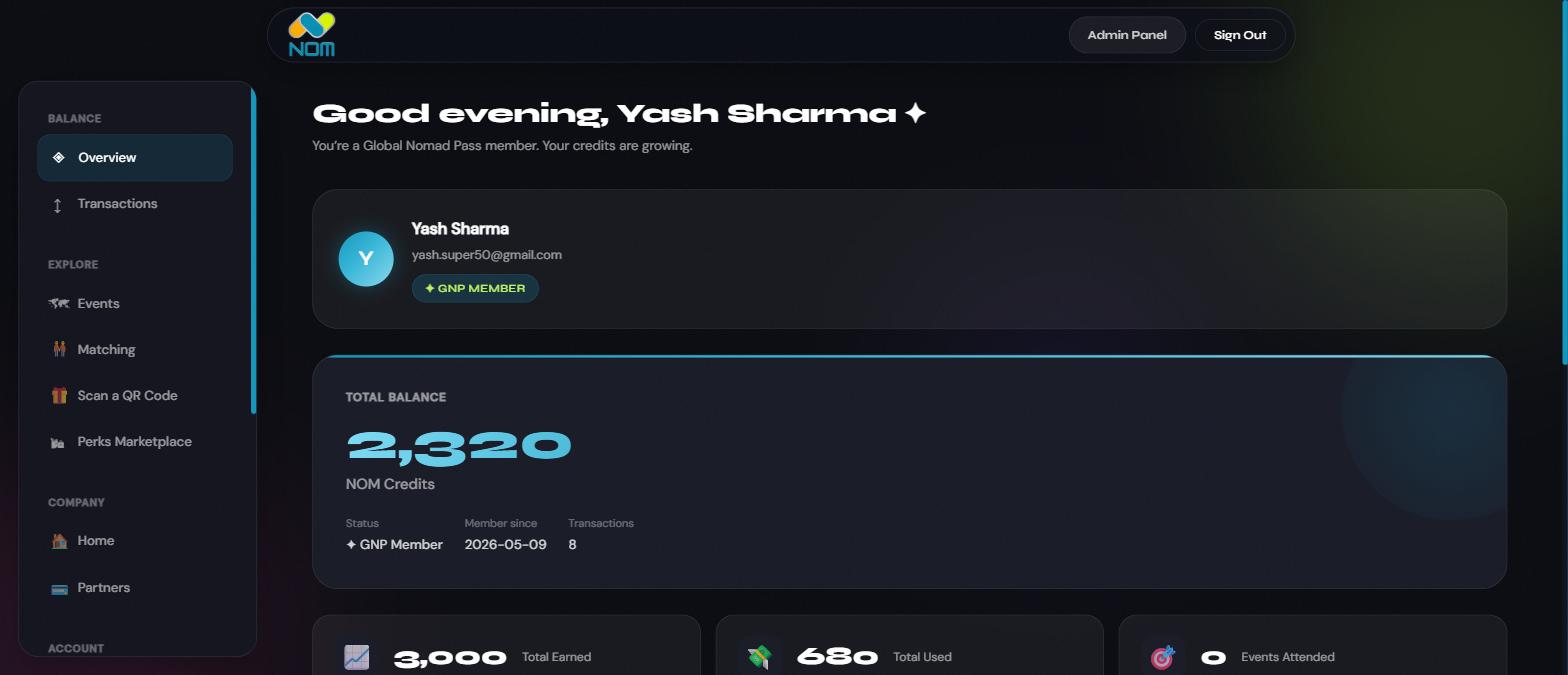
Your Overview tab — balance, GNP status, and quick stats at a glance
Checking your transaction history
Every credit earned or spent is logged with a date and description.
- From any dashboard page, click Transactions in the sidebar
- Green entries (+) are credits you earned; red entries (−) are credits you spent
- Each entry tells you exactly why — e.g. "Welcome Bonus," "Marketplace perk redeemed," "Reward claimed"
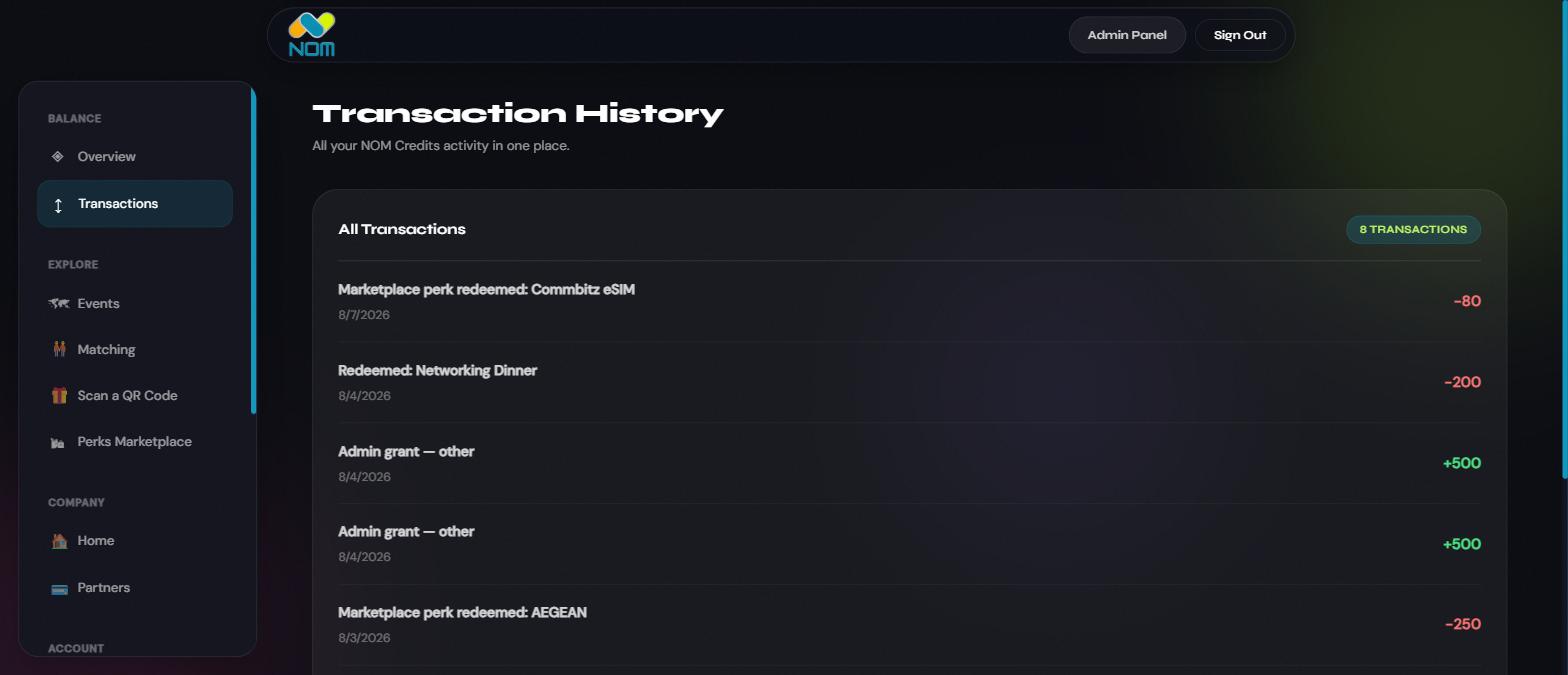
Transaction History — a full log of every credit you've earned or spent
Scanning a reward QR code to earn credits
Sponsor booths, workshops, and networking sessions often have a printed QR code you can scan to instantly earn credits.
- Open Scan a QR Code in the sidebar (or tap the QR icon in the app)
- Tap "Scan QR with Camera" and point your camera at the poster — or type the code printed underneath it manually
- Tap Claim — credits land in your balance immediately, and you'll see a confirmation
Example: You walk past a sponsor's booth at Athens Nomad Fest and see a printed QR code with "Scan to earn 100 NOM Credits." You open your NOM dashboard, tap Scan a QR Code, scan the poster, and 100 credits appear in your balance right away — no ticket or check-in needed for this part.
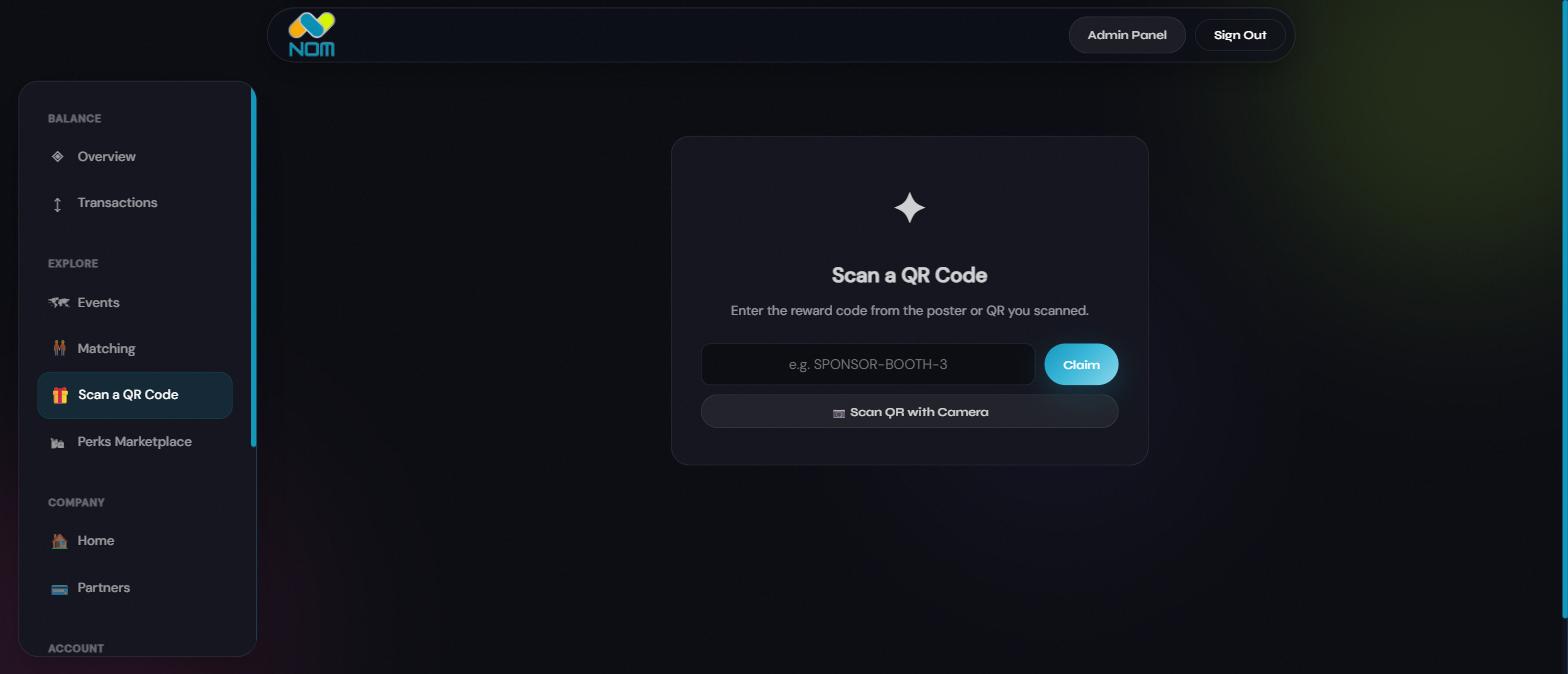
The Scan a QR Code page — camera scan or manual code entry
Redeeming a perk from the Marketplace
Spend your credits on partner offers — flights, eSIMs, accommodation, and more.
- Open Perks Marketplace in the sidebar
- Filter by category if you're looking for something specific (Flights, Accommodations, eSIM, etc.)
- Click "View offer" on a perk, then confirm the redemption — the credit cost is deducted from your balance immediately
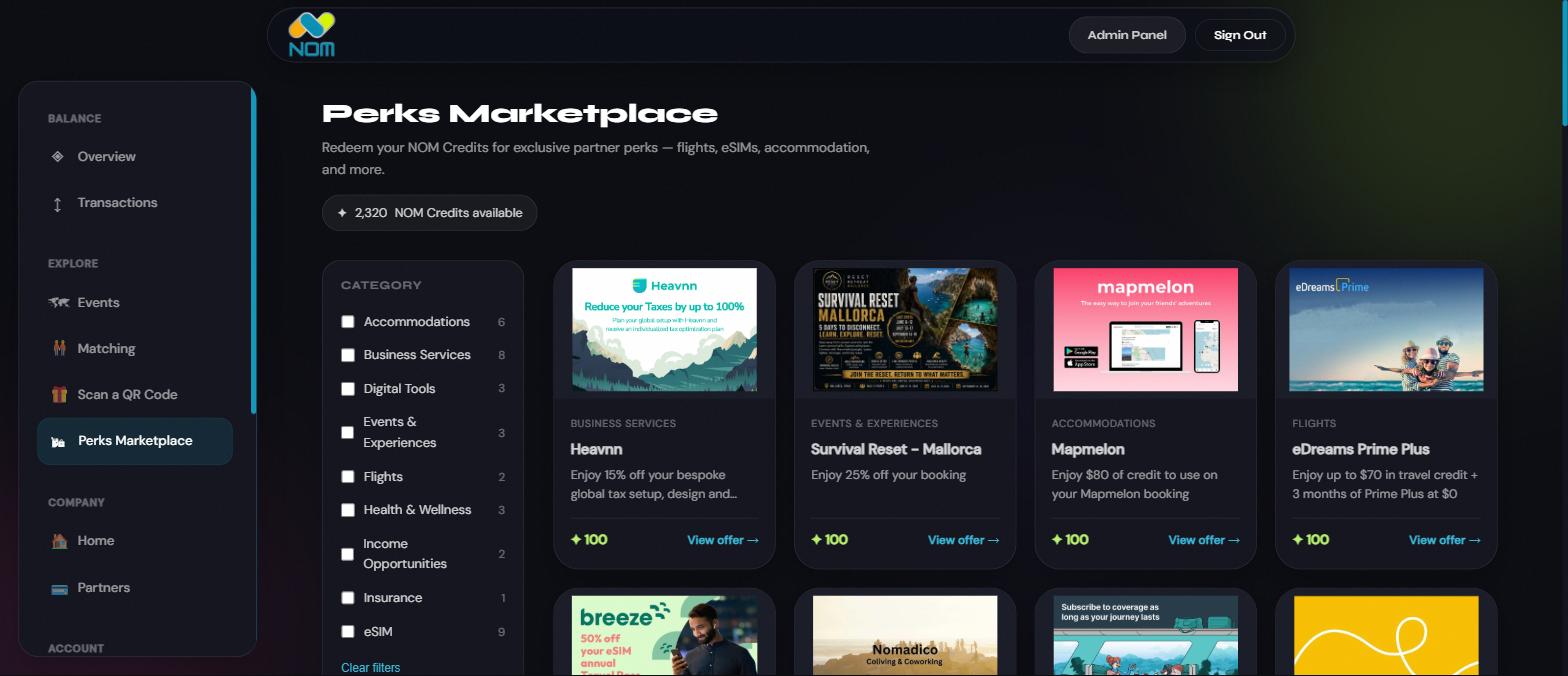
Perks Marketplace — browse and redeem partner offers with your credits
For Sponsors
If your brand wants to distribute NOM Credits to attendees at a booth, workshop, or session, here's how that works.
Becoming a NOM Credits sponsor
Sponsor packages are set up individually rather than self-serve, so the first step is a conversation.
- Reach out to Dimitris directly to discuss sponsor packages and pricing
- Once you've agreed on a package, complete the purchase
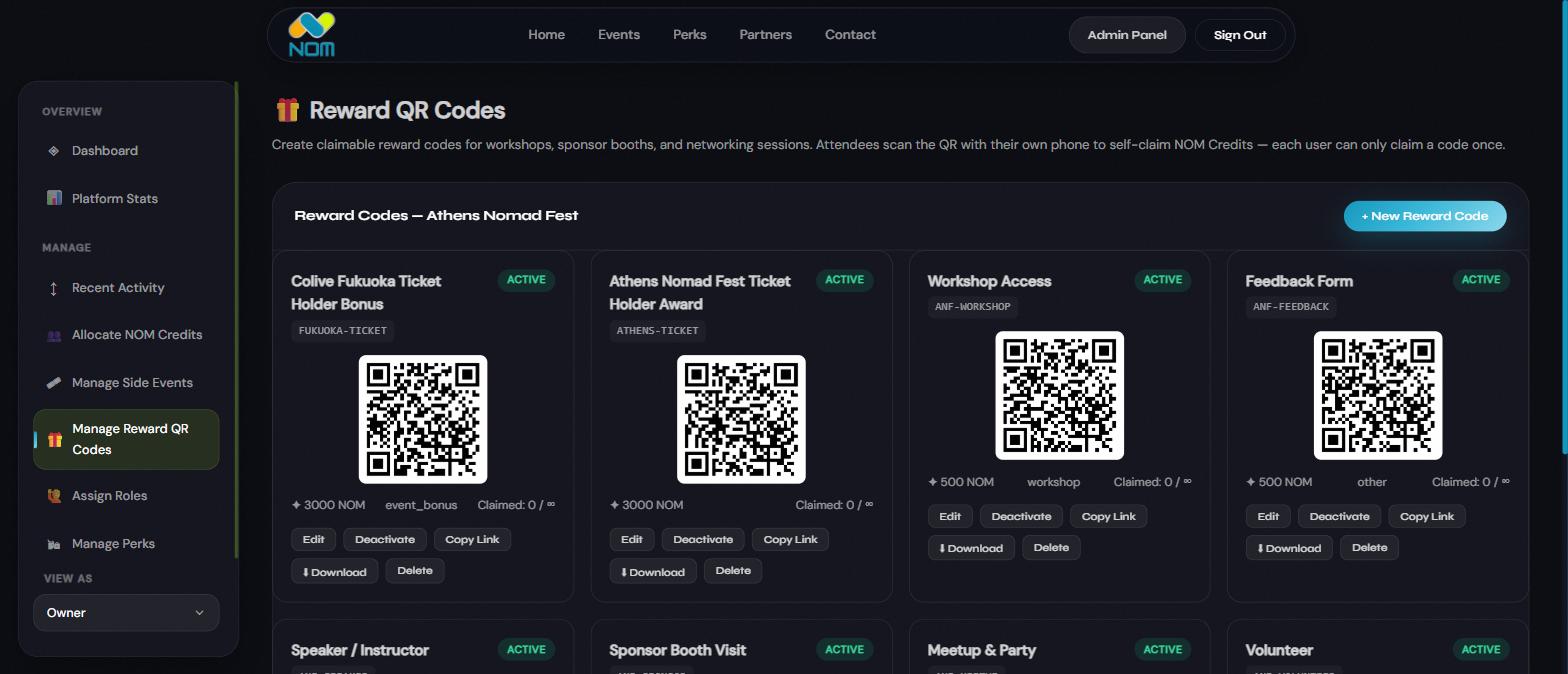
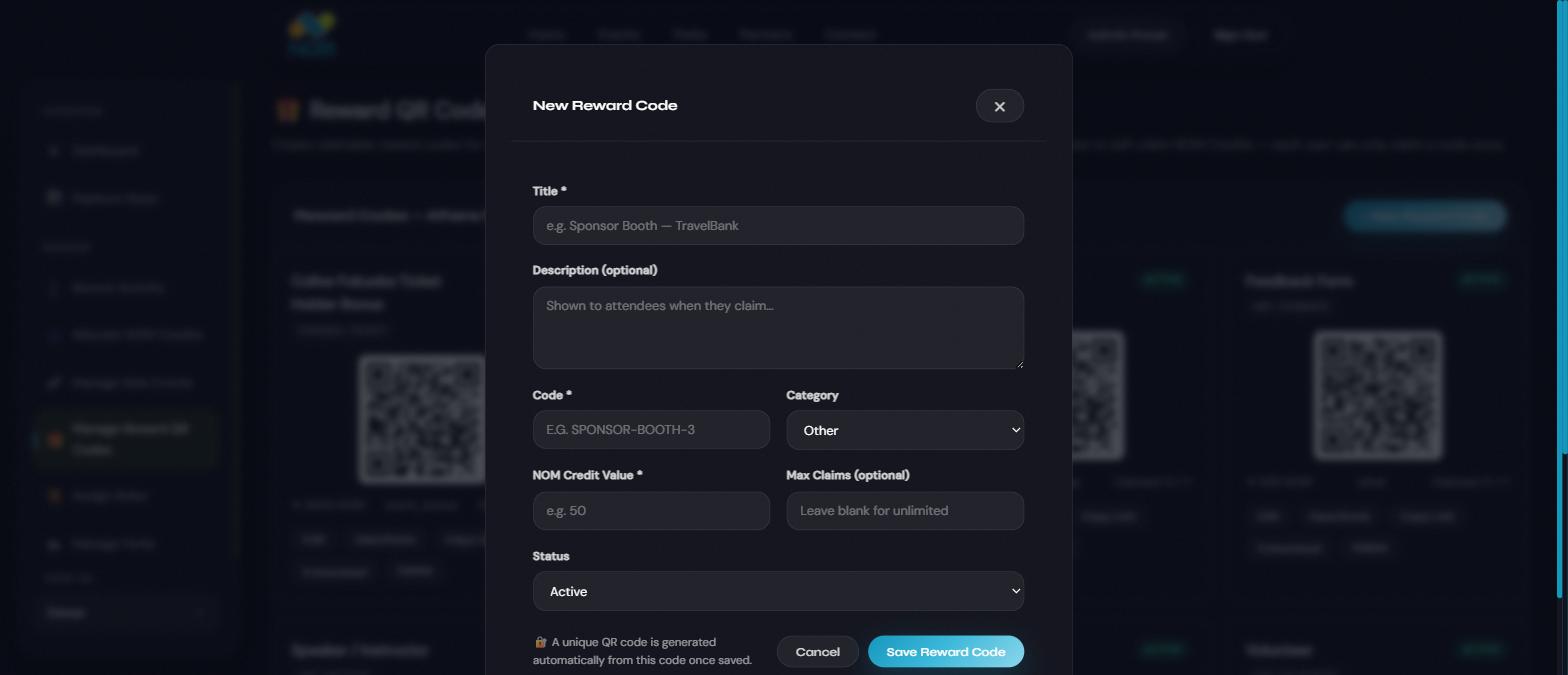
- The NOM Credits team sets up a reward QR code for your booth or session — attendees scan it to earn credits on the spot
You don't need a NOM Credits account yourself — your only touchpoint is the printed QR code at your booth. See the "Scanning a reward QR code" example above for what this looks like from the attendee's side.
For Partnered Businesses
If your venue is a NOM Credits partner, this is the entire process — it's just one step.
Displaying your NOM rewards QR code
Customers earn NOM Credits for buying something or using your space — you just need the code visible.
- Download your business's reward QR code (provided to you by the NOM Credits team)
- Print it and place it somewhere visible — your counter, entrance, or table
- When a customer makes a purchase or uses your facilities, they scan the code with their own NOM Credits app to earn credits
Example: A visitor grabs a coffee at your café. They open their NOM dashboard, tap Scan a QR Code, scan the code sitting on your counter, and earn credits instantly — nothing for you to verify or approve.
That's the whole process for now — no login or dashboard access needed on your end.